


In the first article of this series, we established the central paradox of working in regulated, air-gapped environments: compliance standards like NERC CIP, PCI DSS, and HIPAA demand both strict network isolation and timely, documented patch management. These two requirements are in direct conflict. We saw how the traditional 2:00 AM, 12-step manual upgrade process for a firewall HA pair is slow, prone to human error, and fails to produce the “golden thread” of audit evidence that regulators demand. Automation, we concluded, is the only practical way to be both secure and compliant.
This brings us to our next major challenge: how do you automate in a locked-down network? Most modern automation platforms are a non-starter for us. They are built on assumptions that are fundamentally incompatible with a regulated, “offline-by-design” network. They assume:
-
Agents: Software must be installed on every managed device.
- SaaS Controllers: A cloud-based service is the “brain” of the operation, and requires constant, bi-directional Internet access.
- Public Repositories: Devices and controllers need to pull packages, updates, and instructions directly from the Internet.
Palo Alto Networks’ own AIOps for NGFW is a perfect example of this modern paradigm. It’s a a compelling l, cloud-based service, but it’s architecturally dependent on sending telemetry to the Strata Logging Service (SLS). For an architect in a utility, a bank’s cardholder data environment (CDE), or a hospital’s clinical network, this is an immediate non-starter.
This is the air-gapped automation dead end. We need automation to meet our compliance goals, but the tools themselves seem to violate our core security posture.
This is where Ansible, combined with the official Palo Alto Networks collection, provides the ideal solution. Its agentless, push-based model allows us to build a hardened, offline automation control node inside our secure zone. From this trusted internal system, we can orchestrate every task—from configuration backups to full, HA-aware OS upgrades—without ever deploying an agent or opening a pinhole to the Internet.
This article is the hands-on starting point. We will get you from zero to your first working, read-only playbook against your Palo Alto Networks firewalls, all in a way that is realistic for an air-gapped environment.
Why Ansible Works in Air-Gapped Palo Alto Environments
For architects in regulated industries, “Ansible” is not just another automation tool; it’s a specific architectural pattern that aligns perfectly with our security requirements. Here’s why it’s the right fit.
- Agentless: This is the most reason. Ansible does not require any software to be installed on your firewalls or Panorama. It communicates using the native, built-in PAN-OS XML API over HTTPS—the same secure API your web GUI and Panorama already use. For an auditor, this is a simple, clean answer: we are not adding any third-party code to our critical cyber-assets.
- Push-based: All logic, intelligence, and initiation come from a central “control node.” The firewalls and Panorama are passive devices that receive instructions. They do not “call home” to a cloud controller, and they do not initiate connections outward. This model fits perfectly with a secure management zone where all activity is tightly controlled and originates from a known, hardened internal server.
- Offline-Friendly: An Ansible playbook is a simple set of text files (written in YAML). The Ansible software and the Palo Alto Networks “collection” (the modules that know how to talk to PAN-OS) are packages that can be downloaded, scanned, and securely transferred into the air-gapped zone just like you already do with PAN-OS images and content updates. The entire system runs with zero Internet connectivity.
- Palo Alto Networks Ansible Collection: This isn’t a third-party experiment. Palo Alto Networks maintains an official, robust collection of Ansible modules (paloaltonetworks.panos). These modules provide purpose-built, idempotent “building blocks” for nearly every task: creating objects, managing policies, running operational commands, and—most importantly for this series—managing software and content updates.
Conceptually, our architecture will look like this:
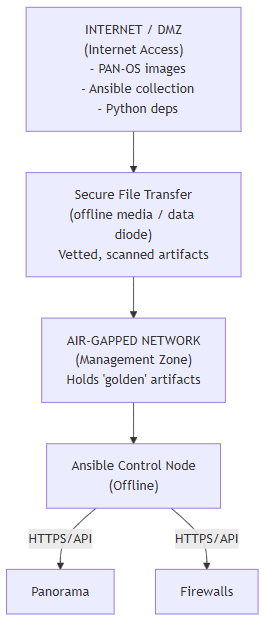
Reference Setup: Ansible in an Air-Gapped Zone
Before you write a single line of YAML, you must design your automation architecture. In a regulated environment, this setup is just as crucial as the playbooks themselves. Here is a realistic, baseline architecture
1. Ansible Control Node:
What it is: A hardened Linux server or VM (e.g., Red Hat Enterprise Linux) that will live inside your secure management network zone.
Connectivity: It must have network reachability (HTTPS/TCP 443) to the management interfaces of your Panorama and/or firewalls.
Security: This node has no direct Internet access. It should be hardened to the same standard as any other management-plane server.
2. Staging / Bridge Host:
What it is: A separate, Internet-connected Linux host. This machine lives in a less-restricted zone, like a DMZ or a “tools” network.
Purpose: This is your only download point. It is used to download Ansible itself, the Python dependencies, and the paloaltonetworks.panos collection tarball.
Process: All downloaded artifacts are scanned and vetted on this host before being approved for transfer.
3. Secure Transfer Path:
What it is: This is your organization’s formal, audited process for moving files from the Staging Host into the air-gapped secure zone.
Mechanism: This could be a secure file transfer gateway, a dedicated SCP jump host, or, in many high-security environments, a manual process involving approved and scanned offline media. The files (Python packages, Ansible collection tarballs) are treated with the same severity as PAN-OS software images.
4. Internal Artifact Repository (Optional but Recommended):
What it is: An internal web server (e.g., Nginx, Apache) or a full artifact manager (like Sonatype Nexus or JFrog Artifactory) that lives in the secure zone.
Purpose: The Secure Transfer Path moves vetted files here. Your Ansible Control Node then pulls from this trusted internal source. This makes the process repeatable and scalable, especially when you start managing PAN-OS images and content updates.
Field note: Your first automation task isn’t writing a playbook; it’s getting this architecture approved. You will need to present this design to your cybersecurity and change management teams. Emphasize that the control node is internal, agentless, and fully offline. This reference architecture is the foundation for that discussion.
Installing & Preparing Ansible Offline
Now, let’s get our tools onto the control node. This is the single biggest hurdle for teams new to offline automation, as you can’t just run pip install. The process is deliberate and follows our architecture.
Step 1: On the Internet-Connected Staging Host
Your goal here is to download everything you need as a set of offline files. We strongly recommend using a Python virtual environment (venv) to isolate your tools, but for the download process, you just need pip and ansible-galaxy.
1. Create a requirements.txt file. This file lists the Python libraries Ansible and the PAN-OS collection depend on.
Field note: In regulated environments, you must pin your dependencies to specific versions for change control and reproducibility. Using >= is fine for a lab, but for production, your requirements.txt should be generated from a tested environment (e.g., using pip freeze) and look like this:
# requirements-frozen.txtansible-core==2.16.7pan-os-python==1.11.0cryptography==42.0.8lxml==5.2.2
2. Download the Python packages. This command downloads the packages and all their dependencies into a single directory.
# Create a directory to hold our offline packages
mkdir./offline_python_packages
# Download all packages listed in requirements.txt into that directory
pip download -r requirements-frozen.txt -d./offline_python_packages
You will now have an offline_python_packages_folder full of.whl (wheel) files.
3. Download the PAN-OS Collection tarball. This command downloads the latest version from Ansible Galaxy as a single file.
# This downloads the collection as a.tar.gz file
ansible-galaxy collection download paloaltonetworks.panos
Step 2: Securely Transfer Your Artifacts
You now have two sets of artifacts on your Staging Host:
- The offline_python_packages/ directory.
- The paloaltonetworks-panos-*.tar.gz file
Use your organization’s approved Secure Transfer Path to move this directory and this file onto your Ansible Control Node in the air-gapped zone.
Step 3: On the Air-Gapped Ansible Control Node
Here, we’ll install our tools from the local files
Create and activate a Python virtual environment. This is a critical best practice. It isolates your automation tools from the base operating system’s Python, preventing conflicts and allowing you to manage your own dependencies.
# Create a virtual environment named ‘ansible_env’
python3 -m venv ansible_env
# Activate the environment. You must do this in every new shell session.
source ansible_env/bin/activate
# (ansible_env) $ <-- Your prompt will change, showing you are “in” the venv.
# For persistence, consider adding this to your.bashrc or.profile
Install the Python packages from your local files. Using the --no-index flag is crucial; it tells pip not to attempt to contact the Internet. The --find-links flag points it to your local directory of downloaded packages.
# Assuming your transferred files are in /opt/staging/
pip install --no-index --find-links=/opt/staging/offline_python_packages/ -r /opt/staging/requirements-frozen.txt
Install the PAN-OS Collection from the local tarball.
# Install the collection directly from the.tar.gz file
ansible-galaxy collection install /opt/staging/paloaltonetworks-panos-*.tar.gz
Verify the installation.
# Check that ansible is installed (inside your venv)
(ansible_env) $ ansible --version
# Check that the panos collection is installed
(ansible_env) $ ansible-galaxy collection list | grep panos
paloaltonetworks.panos...
If these commands succeed, you have a fully functional, offline Ansible control node.
The Palo Alto Networks Ansible Collection: What You Actually Use
Now that it’s installed, what did you just get? The paloaltonetworks.panos collection provides all the specialized modules (tools) you need. You can think of them in a few key categories:
Operational Modules: These are for read-only tasks and running show commands. They are the safest place to start.
paloaltonetworks.panos.panos_op: A general-purpose module to run any operational command, like show system info or show high-availability state.
paloaltonetworks.panos.panos_facts: Gathers structured data (facts) about the device, such as its version, serial number, and (as we’ll see) its entire running configuration.
Configuration Modules: These are idempotent modules that manage a piece of the firewall’s configuration. They are the core of “configuration as code.”
paloaltonetworks.panos.panos_address_object
paloaltonetworks.panos.panos_security_rule
paloaltonetworks.panos.panos_nat_rule
Lifecycle & Orchestration Modules: These modules manage the device itself, not just its config. They are the key to our upgrade pipelines.
paloaltonetworks.panos.panos_import: Used to upload a PAN-OS image or content update from a file to the device.
paloaltonetworks.panos.panos_commit_firewall: Performs a commit on a standalone firewall.
paloaltonetworks.panos.panos_commit_panorama & paloaltonetworks.panos.panos_commit_push: The critical two-step commit process for Panorama.
We will start with the “Operational Modules” to build confidence and provide immediate value.
Building Your First Inventory for Palo Alto Firewalls
The Ansible “inventory” is a file (or group of files) that tells Ansible what devices it should manage. It’s your source of truth for what you have, not what to do.
In your automation project directory, create a file named inventory.yml. For regulated networks, it’s best practice to group hosts by function, location, or compliance scope. As we move forward to automating HA pair upgrades, we should also model the HA relationship directly in our inventory.
Here is a simple, realistic example:
# inventory.yml
all:
children:
panorama:
hosts:
pano-01:
ansible_host: 10.10.10.10
firewalls:
children:
dc1_ha_pair:
hosts:
dc1-fw-01:
ansible_host: 10.10.20.11
ha_peer: ‘dc1-fw-02’
dc1-fw-02:
ansible_host: 10.10.20.12
ha_peer: ‘dc1-fw-01’
pci_zone_fws:
hosts:
pci-fw-01:
ansible_host: 10.10.30.11
- ansible_host: This is the key variable. It tells Ansible which IP address to connect to. This should be the management IP of your firewall or Panorama.
Connecting to the Firewall (The Right Way)
This is the most critical security step. How do you provide credentials to Ansible?
Pitfall to avoid: You will see examples online that put a username and password directly in the playbook or inventory. Never do this. Storing secrets in plaintext is a guaranteed audit failure and a massive security risk.
In a regulated environment, we must use a secure, auditable, and principle-of-least-privilege approach. This involves two steps: creating a dedicated API service account and encrypting its key with Ansible Vault.
Step 1: Create a Dedicated API Service Account (RBAC)
Do not use your personal admin account or a shared superuser account for automation. You will create a dedicated, non-human service account with the minimum permissions required.
-
On your Panorama or firewall: Go to Device > Admin Roles and create a new role profile (e.g., role-ansible-api).
-
Configure the Role: Configure the role for XML API access only. Disable all other access (Web, CLI). Based on the tasks we intend to perform (including future upgrades), enable the following permissions:
Configuration (Enabled)
Operational Requests (Enabled)
Commit (Enabled)
Import (Enabled)
Export (Enabled) -
Create an Administrator: Go to Device > Administrators and create a new user (e.g., svc-ansible).
Set the Authentication Profile to none (or a local password, which we will not use).
Set the Role to your new role-ansible-api. -
Generate an API Key: Log in to the firewall/Panorama API using your new service account’s credentials (often easiest via a web browser). The command is: https://<firewall_ip>/api/?type=keygen&user=svc-ansible&password=<password>
The firewall will return a long XML string. Inside the <key> tag is your API Key. This key is now your password. It is a long-lived credential tied to the svc-ansible account and its limited role.
Step 2: Secure the API Key with Ansible Vault
Now that you have your API key, you must store it securely. ansible-vault is Ansible’s built-in tool for encrypting sensitive data.
We will create a file to store our credentials, and it will be encrypted. By convention, we can place this in a directory called group_vars/all/. The files here are automatically applied to all hosts in your inventory.
-
Create the directory: mkdir -p group_vars/all
-
Create a new file named group_vars/all/vault.yml.
-
Place your API key in this file, structured as a provider dictionary. This provider variable is what the Palo Alto modules expect.
# group_vars/all/vault.yml
Pitfall to avoid: You must enforce certificate validation. You may see examples online using validate_certs: no, but this disables protection against man-in-the-middle (MITM) attacks, which is a major security finding. In a production air-gapped network, your firewalls should have certificates issued by your internal PKI, and your Ansible control node must be configured to trust that internal Certificate Authority.
provider:
api_key: “LU234T02234565s2Z1FtZWFyWXJOSTdk1234565234565=“
validate_certs: true - Encrypt the file: Now, run the ansible-vault command. You will be prompted to create a new “vault password.” This is the only password you will ever need to type.
(ansible_env) $ ansible-vault encrypt group_vars/all/vault.yml
New Vault password: <enter_your_secret_password>
Confirm New Vault password: <re-enter_password>
Encryption successful
Your vault.yml file is now encrypted and safe to store. Ansible will automatically decrypt it in memory (and only in memory) when you run a playbook, as long as you provide the vault password.
A Note on Credential Rotation
Your security policies will likely require you to rotate this API key periodically. ansible-vault makes this auditable and straight forward.
-
Generate a new API key for the svc-ansible user on Panorama/firewall.
-
On the Ansible control node, decrypt the vault file: ansible-vault decrypt group_vars/all/vault.yml.
-
Update the api_key: value in the file with the new key.
-
Re-encrypt the file: ansible-vault encrypt group_vars/all/vault.yml.
-
Run your check_and_backup.yml playbook to verify the new key works.
-
Once verified, revoke the old API key on the firewall/Panorama.
Your First Read-Only Playbook: Verify and Back Up
You have your control node, your inventory, and your encrypted credentials. It’s time for the payoff. We will write a playbook that is 100% safe and provides immediate value: it will verify connectivity to every device, parse its software version, and take a full, timestamped configuration backup.
Create a file named check_and_backup.yml.
---
- name: Verify PAN-OS Devices and Perform Backup
hosts: all
connection: local
gather_facts: no
tasks:
- name: “TASK 1: Create local backup directory”
ansible.builtin.file:
path: “./backups”
state: directory
run_once: true
delegate_to: localhost
- name: “TASK 2: Run ‘show system info’ to verify connectivity”
paloaltonetworks.panos.panos_op:
provider: “”
cmd: “show system info”
register: system_info
retries: 3
delay: 10
until: system_info is success
ignore_errors: true # We will handle failure in the next task
- name: “TASK 2b: Report and exit on connectivity failure”
ansible.builtin.fail:
msg: “CRITICAL: Cannot connect to . Error: ”
when: system_info is failed
- name: “TASK 3: Parse PAN-OS version from stdout”
ansible.builtin.set_fact:
panos_version: “”
- name: “TASK 4: Display PAN-OS version for this host”
ansible.builtin.debug:
msg: “SUCCESS: Connected to . Version: ”
- name: “TASK 5: Gather running configuration as XML”
paloaltonetworks.panos.panos_facts:
provider: “”
gather_subset: [‘config’]
register: panos_config
- name: “TASK 6: Save configuration backup to local file”
ansible.builtin.copy:
content: “”
dest: “./backups/_.xml”
delegate_to: localhost
Deconstructing the Playbook
-
hosts: all: This tells Ansible to run this play against every device in your inventory.yml.
-
connection: local: A standard setting for network automation. It tells Ansible to run the modules on the control node, not to try to SSH into the firewall.
-
gather_facts: no: We are not gathering Linux facts; we are gathering PAN-OS facts. This disables the default Ansible behavior.
-
Task 1: A simple housekeeping task to ensure the ./backups directory exists on the control node.
-
Task 2: Use panos_op to run show system info. We’ve added a retry loop (retries, delay, until) to make the task resilient to temporary API timeouts. We set ignore_errors: true because we want to provide a custom failure message in the next task.
-
Task 2b: This task only runs if Task 2 failed (when: system_info is failed). It uses ansible.builtin.fail to stop the playbook for that specific host and print a clear error message.
-
Task 3: Uses ansible.builtin.set_fact to create a new variable named panos_version. It safely parses the stdout (not stdout_lines) of Task 2 using a robust regex. If the regex fails, it defaults to ‘UNKNOWN’.
-
Task 4: Prints the panos_version variable we just created, giving you immediate, human-readable feedback.
-
Task 5: This is the backup. We use panos_facts and tell it we only want the config subset. This pulls the full running configuration in XML format.
-
Task 6: Saves the configuration from our panos_config variable to a local file. The filename uses ansible_date_time.epoch (e.g., 1678886400) to ensure a unique, sortable filename.
Running Your Playbook
From your control node (with your venv activated), run the following command. It will prompt you for the vault password you created earlier.
(ansible_env) $ ansible-playbook -i inventory.yml check_and_backup.yml --ask-vault-pass
Vault password: <enter_your_secret_password>
PLAY *********************************
TASK [Create local backup directory] ********************************************
ok: [pano-01]
TASK ****************************
ok: [pano-01]
ok: [dc1-fw-01]
ok: [dc1-fw-02]
ok: [pci-fw-01]
TASK **********************************
skipping: [pano-01]
skipping: [dc1-fw-01]
...
TASK *****************************************
ok: [pano-01]
...
TASK *************************************
ok: [pano-01] => {
“msg”: “SUCCESS: Connected to pano-01. Version: 10.2.7”
}
...
TASK [Gather running configuration as XML] **************************************
ok: [pano-01]
...
TASK **********************************
changed: [pano-01]
...
PLAY RECAP **********************************************************************
dc1-fw-01 : ok=6 changed=1 unreachable=0 failed=0
dc1-fw-02 : ok=6 changed=1 unreachable=0 failed=0
pano-01 : ok=6 changed=1 unreachable=0 failed=0
pci-fw-01 : ok=6 changed=1 unreachable=0 failed=0
You have just successfully, securely, and repeatably backed up your entire firewall estate. You now have an auditable artifact for every device, generated by a process documented as code.
Troubleshooting Your First Playbook Run
If your playbook fails, check these common issues first:
“msg": "Authentication failure”
Solution: This is a 403 error. Your API key is incorrect, or the svc-ansible Admin Role does not have the “XML API” permissions enabled for Operational Requests and Configuration. Re-check your RBAC settings.
“msg”: ““
Solution: This is an SSL/TLS error. It means your control node does not trust the certificate on your firewall/Panorama. In production, you must import your internal CA’s root certificate onto the control node. As a temporary (and insecure) lab-only fix, you could set validate_certs: false in your vault.yml file.
“msg”: “paloaltonetworks.panos.panos_op: NOT FOUND”
Solution: Your Python virtual environment (venv) is not activated. Run source ansible_env/bin/activate and try again.
“msg”: “Failed to establish a new connection: [Error 110] Connection timed out” Solution:
Solution: This is a network connectivity error. Your control node cannot reach the ansible_host IP address on TCP port 443. Check firewall rules and routing between your control node and the PAN-OS management interface.
From Playbook to Production: Operational Maturity
You’ve run your first playbook. Before this system can be used for production changes, you must address the same operational maturity and compliance requirements as any other critical tool.
Production-Grade Inventories: Dev, Staging, and Production
You must never test a new playbook against your production firewalls. Your automation code should follow the same promotion path as any other software: from dev, to staging, to production. The easiest way to manage this is with separate inventory files.
- inventory-dev.yml: Points to lab firewalls or VMs.
- inventory-staging.yml: Points to a pre-production environment that mirrors production.
- inventory-prod.yml: Points to your live, production firewalls.
Your workflow becomes:
- Test new playbook: ansible-playbook -i inventory-dev.yml...
- After validation, promote to staging: ansible-playbook -i inventory-staging.yml...
- Only after staging sign-off, run against production during an approved change window: ansible-playbook -i inventory-prod.yml...
Integrating with Change Control
In a regulated environment, every change requires a trail. Ansible is designed to integrate with this process, not bypass it.
- CAB Approval: Before a change window, you can run your playbook in “check mode” (--check) against the production inventory. This “dry run” will report what would have changed without making any actual changes. This report can be attached to your ServiceNow or Remedy change ticket as evidence for the Change Advisory Board (CAB).
- Audit Evidence: The full, non-check-mode playbook run is your audit evidence. Its output shows exactly what ran, when it ran, what changed, and the final state.
Logging and the Audit Trail
A successful “PLAY RECAP” on your screen is not sufficient as an audit trail. You must configure your Ansible control node to create persistent, non-repudiable logs that can be forwarded to your SIEM.
You can configure this by creating an ansible.cfg file in your project directory.
# ansible.cfg
[defaults]
inventory = inventory-prod.yml
# Log all playbook output to a file for auditing
log_path = /var/log/ansible/ansible.log
# Use the ‘yaml’ callback for more readable CLI output
stdout_callback = yaml
# Enable plugins for performance auditing
callbacks_enabled = ansible.posix.profile_tasks, ansible.posix.timer
-
log_path: Tells Ansible to append a detailed log of every playbook run to this file.
-
stdout_callback = yaml: Makes the terminal output much more human-readable, which is especially helpful for complex data structures.
-
callbacks_enabled: Enables plugins that add task execution times (profile_tasks) and timestamps (timer) to your logs, which is invaluable for performance tuning and auditing.
Field note: Your SIEM team can (and should) ingest these logs. A simple Splunk inputs.conf stanza on your control node’s forwarder, for example, gives them complete visibility into all automation activity.
# Example Splunk inputs.conf on the Ansible Control Node
[monitor:///var/log/ansible/ansible.log]
sourcetype = ansible:playbook
index = security_automation
Disaster Recovery for Your Control Node
If your Ansible control node fails during a maintenance window, your entire automation capability fails with it. This node must be backed up. Your automation “source of truth” lives in a few key places:
- Playbooks & Roles: All your .yml files.
- Inventories: Your inventory-*.yml files.
- Credentials: Your group_vars/all/vault.yml file.
- Dependencies: Your requirements-frozen.txt and the downloaded artifact tarballs.
- Logs: Your /var/log/ansible/ directory (backed up to your SIEM or file-level backup solution).
Field note: Store your playbooks, inventories, and encrypted vault file in an internal Git repository. To meet compliance for “who can make changes,” configure your repository’s main branch as a protected branch. This allows you to require all changes to be submitted via a Pull Request (PR) and enforce peer review before any automation code is approved for production use.
With these components, you can rebuild a new control node, pull your Git repo, install the dependencies, and be operational again in minutes.
Conclusion & Next Steps
In this article, we moved from theory to practice. You now have a secure, offline, and auditable Ansible control node. You’ve built a production-ready inventory, secured your API credentials, and executed a robust, read-only playbook to verify and back up all your firewalls. You also have a clear path for logging, change control, and disaster recovery.
You have proven we can read from our devices. Now it’s time to write.
In the following article, “Automating Firewall Updates Without Internet Access,” we will tackle the logistical nightmare of maintaining threat, AV, and WildFire signatures in an offline zone. We will replace the manual juggling of USB drives with a secure, automated pipeline. You’ll learn how to use Ansible to securely transfer update files (via SCP or SFTP), validate their integrity with hash checks, and push them consistently across your firewalls—complete with pre-validation and backup steps to ensure safety.